
Most PDFs look readable. You can open them, scroll through them, and see the text. But if that PDF came from a scanner, a camera, or a printed form, what you're actually looking at is a picture. The text is an image, and it might as well be wallpaper as far as any software downstream is concerned.
PDF character recognition bridges that gap. It converts those pixel-based scanned PDFs into machine-readable text: selectable, searchable, and usable by the systems that depend on clean document input. Without it, your contract can't be indexed, your invoice can't be auto-processed, and your screen reader can't parse a word.
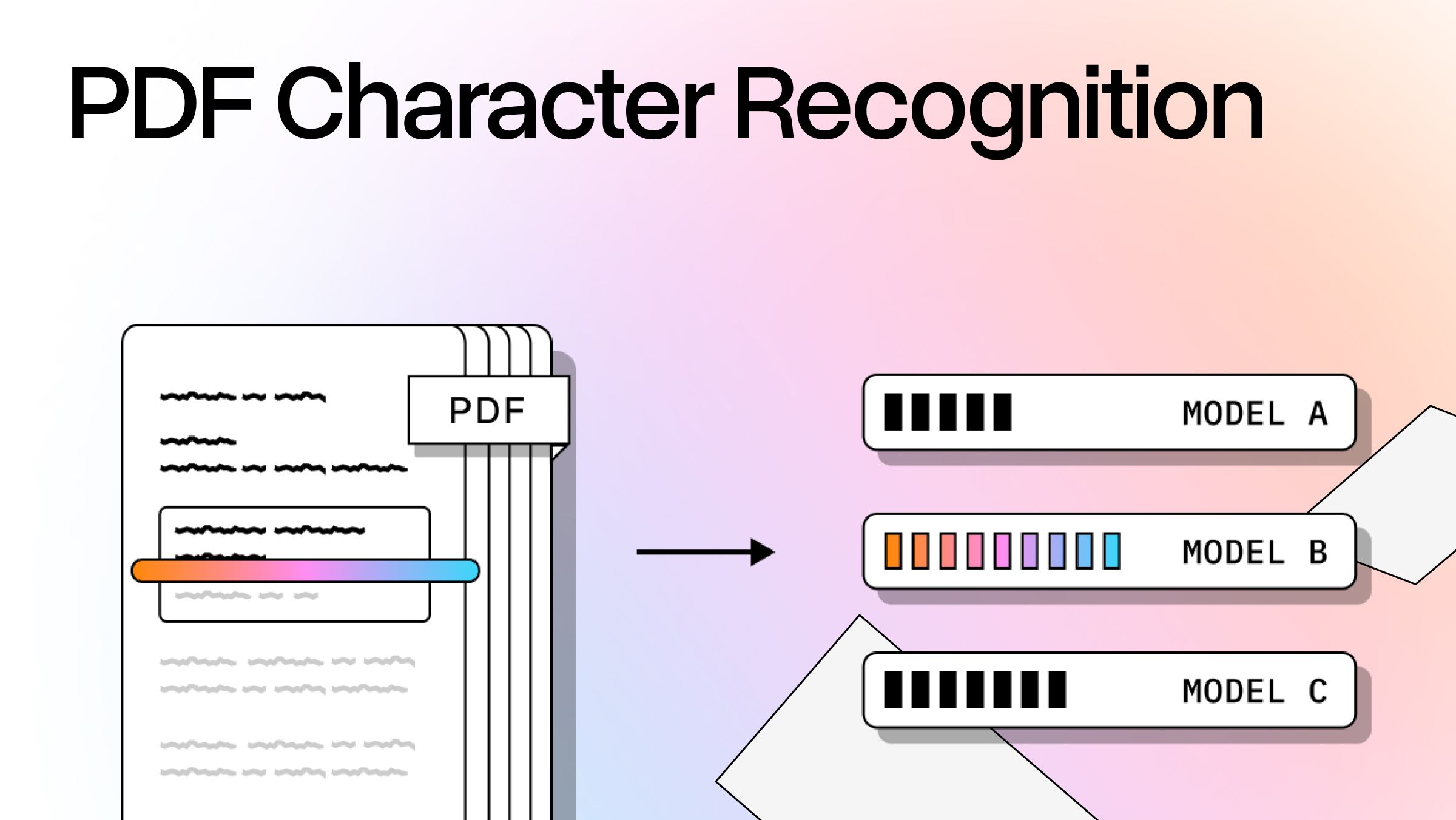
PDF character recognition, also called OCR (optical character recognition), is the process of detecting and extracting text from image-based PDF files by analyzing pixel patterns and matching them against known character shapes. The output is either a searchable PDF with an embedded text layer or editable text that can be structured, stored, and queried.
Where it gets complicated is in the gap between "recognized text" and "usable text." Scanned a simple form? Basic OCR handles it. Multi-column financial report with embedded tables and charts? That's a different problem entirely.
How to Tell If Your PDF Needs OCR
Before reaching for an OCR tool, check whether your PDF file already has a text layer. The test takes ten seconds: open the PDF document in any viewer, click on a line of text, and drag to select a few words. If you can highlight specific words and copy them cleanly into another app, the document already has selectable text. OCR either isn't needed or has already been run.
OCR is needed if any of these apply:
- You can't select any text, and the whole page behaves like a single image
- You can select text, but what pastes into a text editor is garbled, out of order, or full of random characters
- Selecting specific words is difficult even though the text looks correct on the screen
- A colleague using a screen reader reports the document is unreadable
When OCR runs, it produces one of two output formats. A searchable PDF keeps the original scanned image as the visible layer but adds a hidden text layer behind it. You're reading the original scan, but software can find and select the text underneath. An editable text PDF goes further, replacing the scanned image with rendered font characters you see directly on screen. Most workflows use the searchable variant. Editable output makes sense when you need to modify the document itself, or when the original scan is too low-resolution to read comfortably.
Both formats produce a PDF with machine-readable text. The difference is which layer your eyes land on.
What's Actually Happening When Software Reads a PDF
PDFs fall into two distinct categories that most people don't think about until something breaks.
A native PDF contains encoded text data. When you copy and paste from it, the text is already there because it was embedded when the file was created. A scanned PDF (or image-only PDF) is a photograph of a document. There's no text layer. When you try to select text in a scanned PDF, nothing happens, because there's nothing to select.
The OCR pipeline converts the second type into something that behaves like the first. The steps:
- Rasterize the page: render it as a pixel image at a fixed resolution
- Segment the image: identify regions likely to contain text versus graphics
- Recognize characters: match pixel patterns against character shapes from a trained model
- Output encoded text: produce a text layer for searchable PDFs or a raw structured file
The result is a document where text is genuinely machine-readable: indexable by search, parseable by screen readers, and consumable by anything downstream.
This is also where the quality bar matters. A text recognition pass that produces a scrambled output isn't meaningfully better than no OCR at all. If the reading order is wrong or columns are merged, the text technically exists but can't be used. The distinction between "readable by a human" and "parseable by a machine" determines whether your OCR output is actually usable in production.
How Traditional OCR Tools Process a Scanned PDF
Standard OCR tools take an image file in and produce text out using pattern-matching models trained on character shapes. The most common tools in production:
- Adobe Acrobat, the most common entry point for individuals and small teams. Applying OCR in Acrobat converts a scanned PDF to a searchable PDF in a few clicks. For most people, it's the first OCR tool they actually use, and for simple documents it's usually enough.
- Tesseract, the dominant open-source OCR engine, originally developed at HP and now maintained by Google. Highly capable on clean typed text with support for over 100 languages. Gets unhappy when layout gets complex.
- ABBYY FineReader, a commercial tool with stronger layout handling than Tesseract, long used in enterprise document workflows. Enterprise pricing to match.
- AWS Textract, a cloud-based OCR tool with basic table extraction built in. Works well if you're already in the AWS ecosystem. Less compelling if you're not.
When Simple OCR Is Enough
For straightforward document types (single-column typed text, clean black-and-white scans, standard layouts) the basic pipeline holds up. Processing a stack of scanned files or archiving a library of typed forms is well within the capability of any of these tools.
Accessibility is an immediate win here. Scanned images that go through an OCR pass become compatible with screen readers, which is the foundation of making documents usable for visually impaired readers. That outcome doesn't require high-complexity OCR. It just requires that OCR was run and that the text layer is coherent.
Where the Wheels Come Off
The failure modes are predictable:
- Multi-column layouts get collapsed into a single disordered text stream, left-to-right, top-to-bottom, regardless of actual reading order
- Tables flatten into unstructured text blobs with no column or row separation preserved
- Charts and embedded images are skipped entirely, with no fallback or placeholder
- Handwriting, stamps, and mixed-language sections cause recognition failures or gibberish output
Every new document type can require retraining or manual prompt-tuning to maintain accuracy. That maintenance cost adds up fast at scale.
Why Layout Complexity Breaks Character Recognition
Traditional OCR technology treats a page as a flat grid of characters. The model's job is to identify what each character is, not what it means structurally or where it sits in the document's actual hierarchy.
Layout parsing is a separate problem from character recognition, and most OCR tools either merge the two or skip layout parsing entirely. For a single-column typed memo, the distinction is irrelevant. For a real-world PDF document from legal, financial, or medical domains, the distinction is everything.
Consider a financial report: multi-column body text, a data table mid-page, a chart, footnotes in smaller type, running headers at the top. Traditional OCR reads it as a flat sequence, left-to-right and top-to-bottom, and the structural information disappears. The output is technically text, but it's not usable without extensive manual cleanup.
The core failure is that converting image files to text handles only half the job. Reconstructing meaning from layout is the other half, and standard tools don't address it.
When individual characters are recognized correctly but reading order is wrong, the output creates real downstream problems. An invoice with rows and columns turned into a scrambled sequence of numbers and labels produces bad data, not just inconvenient data, and it flows directly into whatever system consumed it.
The ability to open a PDF and see visible text is trivial. The ability to recognize text structure and preserve it through extraction is the actual difficulty, and where most standard tools stop.
Where Traditional OCR Falls Short and What Agentic PDF Parsing Changes
Traditional OCR is a single-model, one-size-fits-all pipeline. The same process handles a clean memo and a 100-page financial report. You can probably guess which one comes out better.
LlamaParse takes a different approach. Instead of running one model over the entire page, an LLM routes each page element to the best available model for that specific element: an OCR engine for clean text regions, a vision model for tables, a VLM for charts and embedded images. Layout-aware computer vision segments the page before recognition runs, so columns, headers, figures, and body text each get the appropriate treatment rather than being flattened into the same processing pass.
Multi-modal understanding is built into the pipeline: text, images, charts, and tables processed together rather than selectively ignored. No custom training is required. The system adapts to new document types without retraining every time a new format appears.
Multiple validation loops catch known OCR failure modes before output reaches downstream systems. Results come back in Markdown, JSON, or HTML with metadata that supports Human-in-the-Loop validation, including citations and confidence scores so your team can verify specific extractions without re-reading the source.
LlamaParse replaces the traditional OCR pipeline for complex documents rather than acting as a post-processing layer on top of Tesseract. The accuracy improvements are most pronounced on exactly the document types where standard tools break down.
What High-Accuracy Character Recognition Delivers
When OCR works correctly, with both characters and document structure preserved, the downstream benefits are concrete.
Accessibility: Accurate text layers are the foundation of screen reader compatibility. An OCR pass that scrambles reading order defeats the point. One that preserves structure makes documents genuinely usable for visually impaired readers who depend on those tools to navigate content.
Search and retrieval: A properly processed document becomes a searchable PDF that indexing systems can actually use. For legal, compliance, and research teams, the difference between "we searched the archive" and "we searched and found the relevant clause" often comes down to whether OCR ran correctly in the first place.
Enterprise automation: Invoice processing, contract review, and medical record extraction all require character recognition that preserves structure, not just isolated characters floating in the right approximate location. The accuracy bar for enterprise automation isn't "readable by a human" but "parseable by a machine without introducing errors."
AI-ready data: Downstream RAG pipelines, classification systems, and document agents are only as reliable as their input. Selectable, structured text from the parsing stage is a prerequisite for everything that depends on it. Garbage in, garbage out, and the garbage often starts at OCR.
Choosing the Right PDF Character Recognition Approach
For simple scans (single-column typed text, clean black-and-white images, standard document layouts), Tesseract, Acrobat, or any standard OCR tool works fine. No reason to add complexity where the basic pipeline holds.
For complex documents (multi-column layouts, tables, charts, mixed content, or enterprise-scale processing), the standard OCR pipeline breaks down in the predictable ways described above. Document complexity is the real decision variable.
LlamaParse handles the complex tier without custom training, using agentic orchestration to route each page element to the right model automatically. It's free to try with 10,000 credits on signup, which is enough to run real documents and see how it handles your actual file types before committing to anything.
If your documents are genuinely simple, use the simplest tool. No reason to add complexity where the basic pipeline holds. If you're building something that needs to handle real-world documents reliably (the kind with tables, charts, multi-column layouts, or variable formatting), the OCR approach you choose determines whether your output is usable or whether you're quietly shipping bad data downstream. Those are different problems, and one of them surfaces in production at the worst possible time. Start with LlamaParse and run it against the documents that are breaking your current setup. That's the only test that actually tells you something.