
Financial due diligence is one of the most document-heavy workflows in finance. Analysts spend up to 70% of their time on manual data extraction. This means time spent transcribing PDFs into spreadsheets, mapping GL accounts, and reconciling trial balances. A single deal might involve hundreds of pages of SEC filings, and every number needs a source.
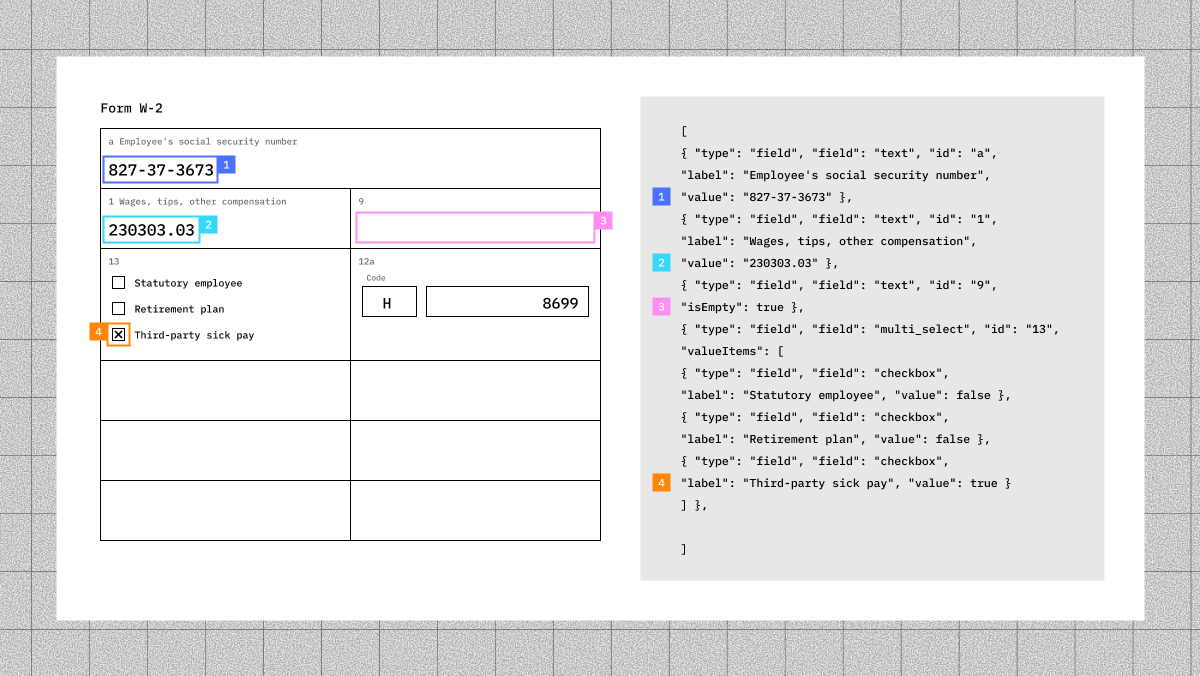
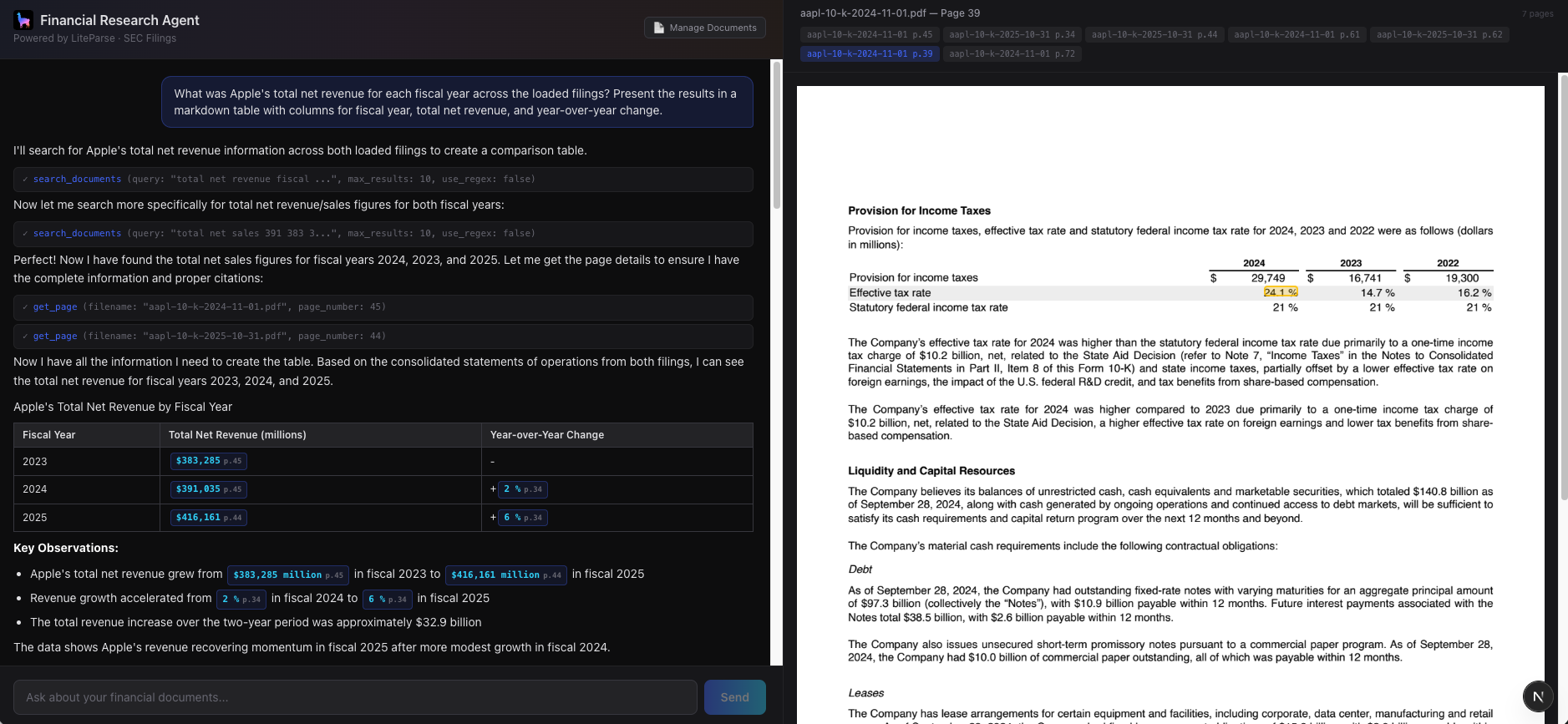
I built a demo app that tackles this: an AI agent that ingests SEC filings, searches across them, and answers questions with precise citations that highlight the exact source text on the original PDF page. The key ingredient is LiteParse, which extracts text from PDFs along with bounding box coordinates. Using this data, the app is able to visually highlight where exact numbers are getting pulled from, adding trust and transparency to the agent's answers.
In this post, I'll walk through how the project works and the key design-decisions made along the way.
The Architecture
The app is a Next.js project with three layers:
- A Next.js chat UI and PDF citation viewer
- API Routes for chat (LLM + tool calling), document ingestion, SEC EDGAR integration, and citation resolution
- A core library with three files/responsibilities: PDF parsing (
ingest.ts), a document store with search (store.ts), and agent tool definitions (tools.ts)
The whole thing ends up being about 600 lines of library code. And explicitly, I avoided using a vector database, embedding pipeline, or any external infrastructure beyond an LLM API key. The simplicity helps make this project easy to understand and extend, while demonstrating the core usage of LiteParse.
Step 1: Parsing PDFs with LiteParse
Ingestion with LiteParse is straightforward. Put in a PDF file path (or file buffer) and it returns structured data: all the text along with bounding box coordinates (x , y , width , height ), font name, and font size for each piece of text.
html
import { LiteParse } from "@llamaindex/liteparse";

const parser = new LiteParse({ outputFormat: "json", ocrEnabled: false });

export async function ingestPdf(filePath: string, filename: string) {
  const result = await parser.parse(filePath, true);

  const pages = result.json?.pages.map((pg) => ({
    pageNum: pg.page,
    width: pg.width,
    height: pg.height,
    text: pg.text,
    textItems: pg.textItems.map((item) => ({
      text: item.text,
      x: item.x,
      y: item.y,
      width: item.width,
      height: item.height,
      fontName: item.fontName,
      fontSize: item.fontSize,
    })),
  })) ?? [];

  return { filename, pages };
}While most PDF parsers will output text or markdown, LiteParse gives you text plus layout, with every word and its exact position on the page. This is what makes the citation highlighting possible later.
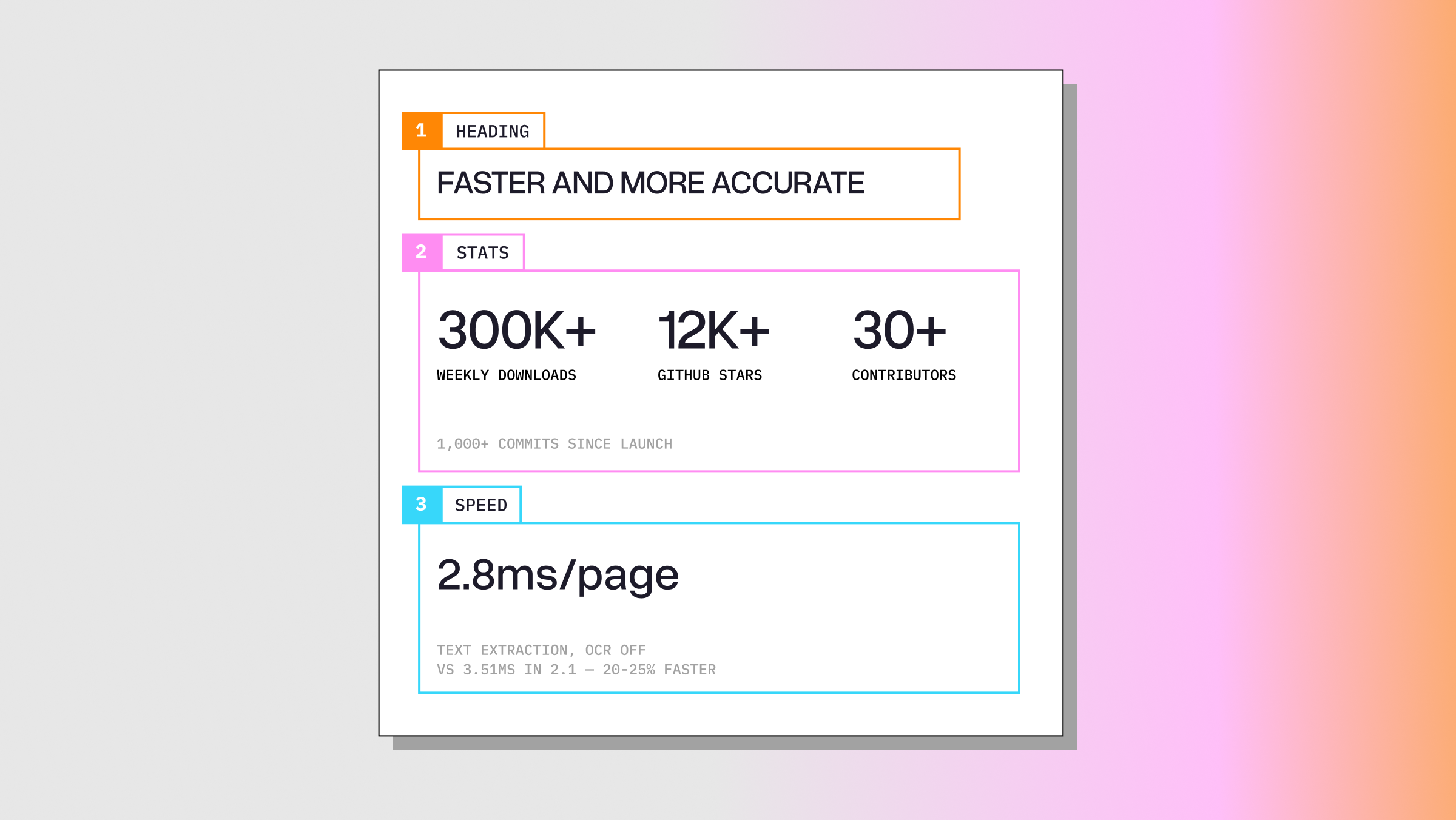
A typical 10-K filing (70-100+ pages) parses in a few seconds.
Step 2: A Simple Document Store
The parsed documents get stored as a flat JSON file.
html
export function addDocument(doc: Document): void {
  const docs = loadStore();
  const existing = docs.findIndex((d) => d.filename === doc.filename);
  if (existing >= 0) {
    docs[existing] = doc;
  } else {
    docs.push(doc);
  }
  fs.writeFileSync(STORE_PATH, JSON.stringify(docs, null, 2));
}For search, I went with keyword matching instead of vector similarity. The search function takes a query, splits it into terms, and scores each page by how many terms it contains:
html
const terms = query.toLowerCase().split(/\\s+/);

for (const doc of docs) {
  for (const page of doc.pages) {
    const textLower = page.text.toLowerCase();
    const score = terms.filter((t) => textLower.includes(t)).length;
    if (score === 0) continue;
    // ... build snippet, add to results
  }
} There's also a regex mode for when the agent wants more precise pattern matching (e.g., \\\\$[\\\\d,]+\\\\s*million to find dollar amounts).
Why no vector search? Typically the working set of documents in this app is small (1-100 fillings). As we see later on, the tools exposed to the agent are more than enough to find relevant information without needing semantic search. Since files like 10-Ks are heavily prevalent in LLM training data, we can exploit existing knowledge on key terms and structure.
Step 3: Giving the Agent Tools
The agent gets three tools via the Vercel AI SDK:
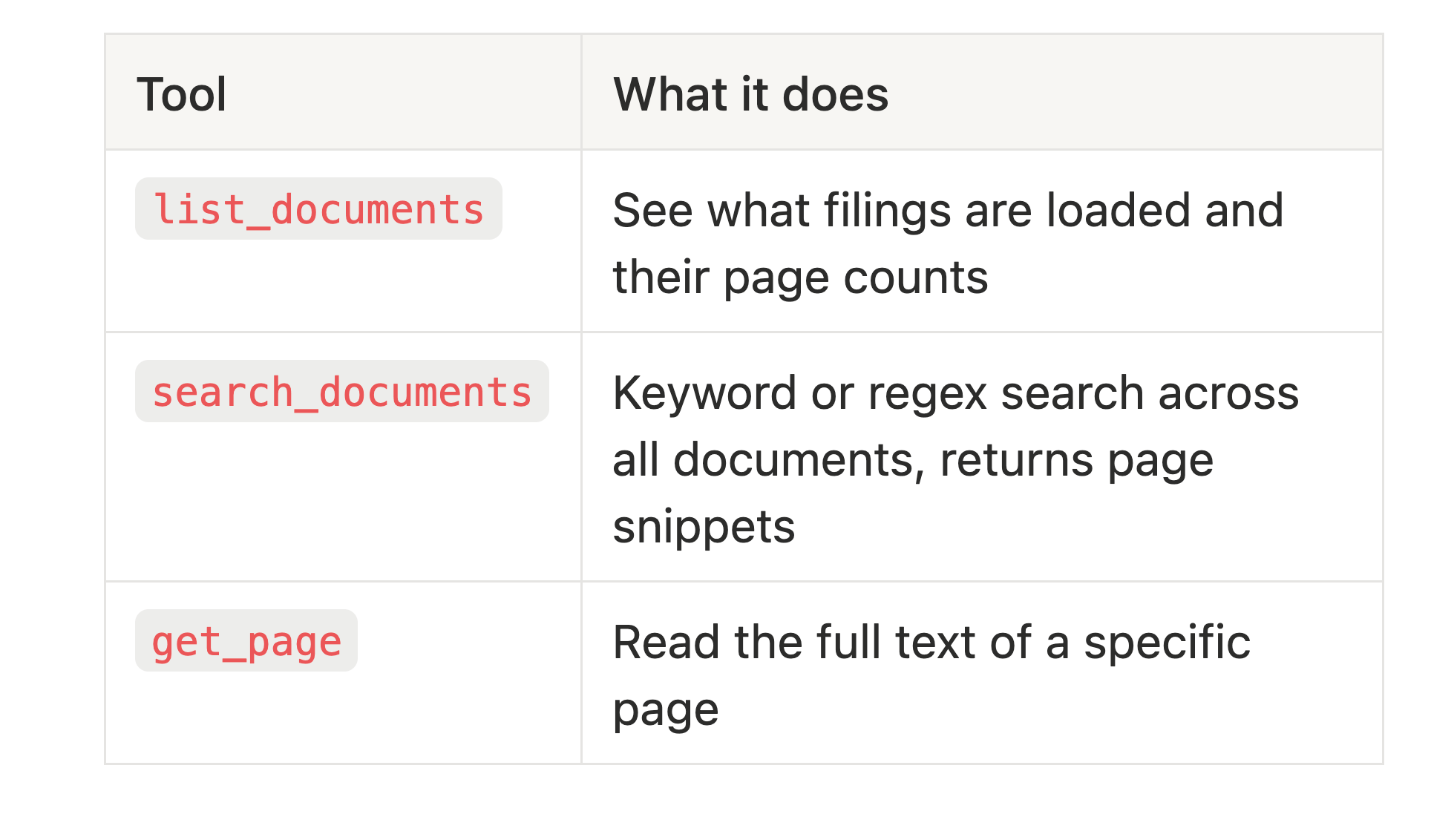
The tool definitions are straightforward with Zod schemas, and the resulting tools end up looking something like:
html
function list_document() => [...]
function search_documents(query: string, file_glob: string | null, max_results: number, use_regex: boolean) => [...]
function get_page(filename: string, page_num: number) => string The file_glob parameter in the search_documents tool lets the agent filter searches to specific documents (e.g., *2024* ), which is useful when you have multiple filings loaded and want to compare across periods.
Step 4: The Chat Route
The chat endpoint uses Vercel AI SDK's streamText with tool calling. The system prompt tells the model what documents are loaded and how to use citations:
html
const result = streamText({
  model: anthropic("claude-sonnet-4-20250514"),
  system: buildSystemPrompt(),
  messages: await convertToModelMessages(messages),
  tools,
  stopWhen: stepCountIs(30),
  experimental_transform: smoothStream({ chunking: "word" }),
}); The system prompt is opinionated about citations. It tells the model to wrap referenced data in <cite> tags with the exact filename and page number:
html
<cite file="aapl-10k-2024.pdf" page="42">394,328</cite> Most importantly, it insists on verbatim text: "The text inside <cite> tags MUST be copied exactly from the document." The app relies on this because the citation system needs to find that exact string on the page to compute the highlight position. If the LLM paraphrases or reformats a number, the match fails and we get an unverified citation instead.
In my testing, the LLM is typically pretty good at following these instructions. When citations can't be found, its typically do to weird formatting differences that can be hard to work around.
Step 5: The Citation System
When the UI encounters a <cite> tag in the agent's response, it:
- Parses the tag to extract the filename, page number, and cited phrase
- Calls
/api/citewhich usesfindTextLocation()to locate the phrase on the page - Computes a bounding box by mapping the matched characters back to the original text items and their coordinates
- Renders the PDF page via LiteParse's
screenshot()method and draws a highlight overlay at the exact location
The matching uses a layered strategy because LLMs aren't always perfectly verbatim, and there are some edge cases specific to financial documents. The matching algorithm tries these strategies in order:
- LiteParse's
searchItems— the built-in search algorithm that ships with LiteParse. Tries to account for line-wrapping and other minor inconsistencies. - Whitespace-flexible regex — tolerates formatting differences between LLM output and PDF text.
- Currency/symbol stripping — handles cases where the LLM adds or drops
$signs - Alphanumeric-only matching — last resort, ignores all punctuation
- Longest token matching — if all else fails, find the most distinctive number or word
If a match is found, the bounding box is computed proportionally across overlapping text items. And then using the screenshot functionality from LiteParse, we can render the screenshot with the appropriate text highlighted.
When a citation can't be verified, the UI shows it with a yellow "unverified" badge instead of hiding it. This way, users can at least see where the agent intended to pull information from, even if the exact match failed. In most cases the match is on the page, but just in a way that the algorithm couldn't find (e.g. $52.00B vs. 52 billion ).
Step 6: SEC EDGAR Integration
To make the demo self-contained, I added direct SEC EDGAR integration. The flow:
- User enters a ticker (e.g.,
AAPL) - The app resolves the ticker to a CIK number via SEC's company tickers file
- Fetches recent filings from the EDGAR submissions API
- User selects which filings to download
- Downloads the filing document, parses it with LiteParse, adds it to the store
The EDGAR API seems to return a mix of HTML and PDF documents. While LiteParse can't parse HTML, the app will convert HTML to PDF using Puppeteer for you. This means the same extraction pipeline works regardless of the original format.
What This Demo Isn't
This is a demo, not a production system. However, there are really only a few things I would swap out to deploy this in a production setting:
- Replace the disk usage with S3 or a similar blob store for parsed documents
- Swap the flat JSON file store for a proper database with indexing for search
- Add user authentication and access controls
But these are all engineering details on top of the core functionality already present in the app. If you fork the repo and add some of these things, feel free to share it back!
Try It Yourself
The full source is on GitHub. You'll need Node.js 18+ and an Anthropic API key.
html
git clone <https://github.com/logan-markewich/liteparse-financial-agent.git>
cd liteparse-financial-agent
npm install
cp .env.example .env
# Add your ANTHROPIC_API_KEY to .env
npm run dev
Open localhost:3000 , search for a ticker in the EDGAR tab or upload a file, and start asking questions.