

PDF parsing is the process of extracting text, tables, images, and structural information from PDF documents. It sounds simple on the surface. In practice, PDFs are one of the hardest file types to parse cleanly. They were designed to preserve visual layout for printing, not to structure content for machines.
This matters more than ever. Millions of PDFs hold the facts, figures, contracts, filings, and reports that AI applications need. HTML-based training data does not cover this ground. Most document pipelines get stuck when it comes to getting the content out of PDFs in a form an LLM can actually use.
This guide covers what PDF parsing involves and why it is hard, and how to do it with LlamaParse in a few lines of Python.
Ready to get started with LlamaParse?
Explore our free and paid plans today.
What is PDF parsing?
PDF parsing is the process of reading a PDF file and turning its content into structured, machine-readable output. That output typically includes:
- The raw text on each page
- Structural elements such as headings, paragraphs, and reading order
- Tables, with their row and column relationships preserved
- Embedded images, charts, and diagrams
- Metadata such as page numbers, bounding boxes, and language
The goal of PDF parsing is to preserve enough context and structure that a downstream application can use the content without further cleanup. The downstream application might be a search index, an analytics pipeline, or an LLM answering questions over the document.
Why PDF parsing is hard
PDFs were designed to look like printed pages, not to be read by machines. Almost every parsing problem traces back to that. Here are some challenges that come
Reading order is not encoded reliably. PDFs can carry structural metadata, but the apps that generate them often get it wrong. InDesign is a common culprit. It sets reading order based on the sequence the designer worked in, not the visual layout. A clean two-column page for a reader can come out as a jumbled mess in the raw output.
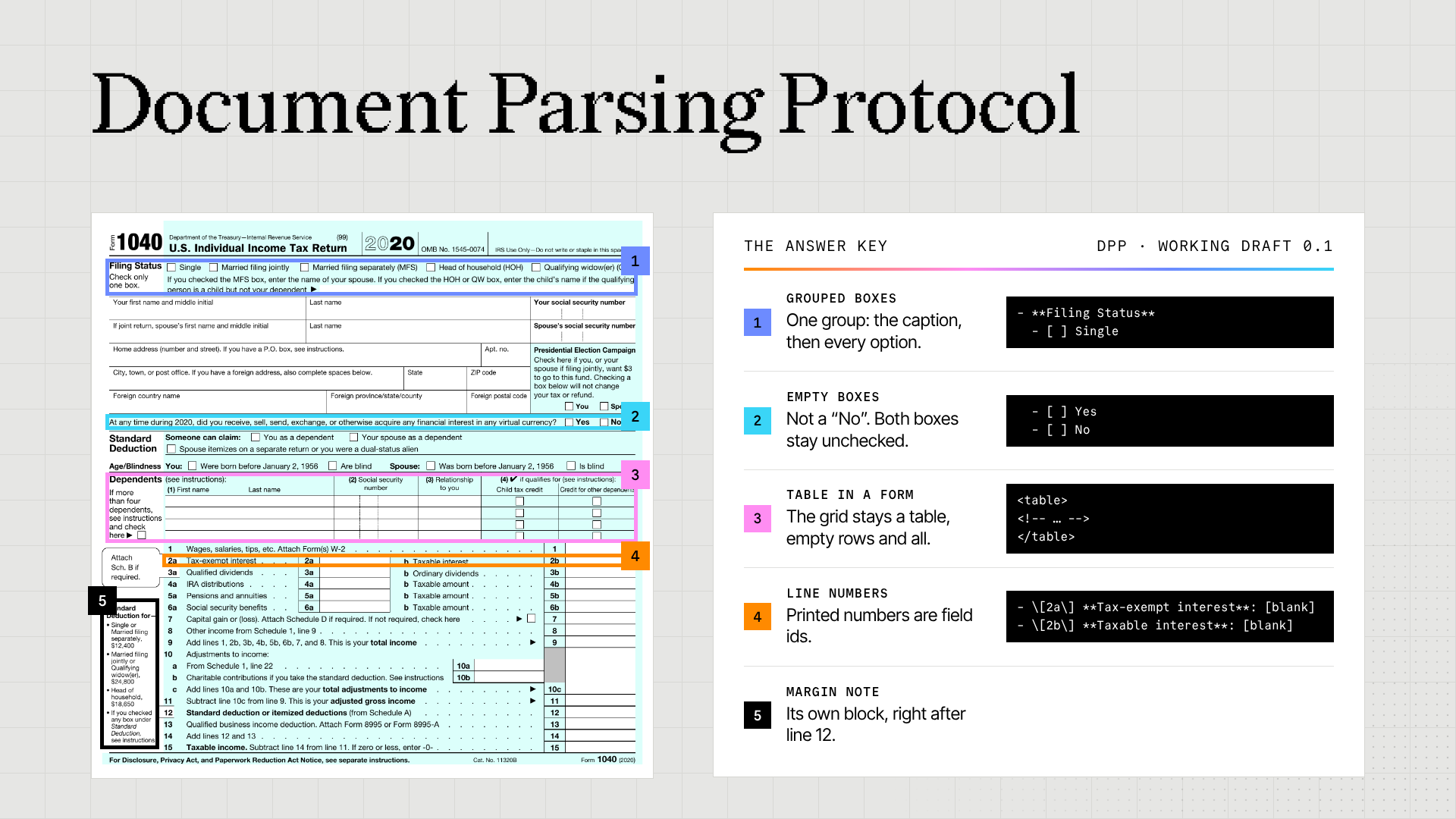
- Tables are unstructured under the hood. A table on a PDF page is really just text fragments at specific coordinates, with lines drawn around them. Nothing tells the parser that row 3 belongs with column 2. It has to figure that out from spatial position alone, and this is where most parsers break.
- Multi-column and mixed layouts confuse most parsers. Think of an academic paper with sidebars and figures, or a financial filing packed with callout boxes and footnotes. A parser reading left-to-right, top-to-bottom will stitch content together in the wrong order and lose the structure.
- Scanned PDFs contain no text at all. They are just images wrapped in a PDF container. You need OCR to pull the text out before parsing can even start. And OCR gets harder fast when scans are low-resolution, rotated, or contain handwriting.
- Charts and images are not decoration. A parser that skips visual content misses a lot. The numbers in a bar chart, the labels on a diagram, the callouts on a screenshot. In a financial report or a technical spec, that visual content is often the whole point.
- Forms and interactive elements are their own headache. Fillable fields, checkboxes, digital signatures, and embedded links each need specific handling. Basic text extraction ignores them completely.
Traditional PDF parsers built on rule-based extraction or basic OCR do fine on the easy cases. Everything else is where they fall apart, and that is exactly where LlamaParse comes in.
Approaches to PDF Parsing
There are several families of PDF parsing tools, each suited to different documents and use cases.
- Traditional Python libraries: Tools like PyPDF2, pdfplumber, and PDFMiner extract text and basic layout information from digital PDFs. They work well when documents are simple and consistent. They struggle with complex tables, multi-column layouts, and scanned content. They also produce raw text that usually needs post-processing before it can be used downstream.
- OCR-based parsers: Tools built on Tesseract or commercial OCR engines convert scanned or image-based PDFs into text. OCR handles character recognition but does not understand structure. A table extracted through OCR alone often comes out as a jumble of text fragments with no row-column relationships.
- LLM and vision model-based parsers: Modern parsers combine OCR with large language models and vision models to interpret both content and layout. They read the raw text and identify structural elements. Then they reconstruct tables and reading order using the reasoning capabilities of the underlying models. LlamaParse falls in this category.
Which approach fits depends on the documents involved. Simple digital PDFs with clean structure can be parsed with a traditional library. Anything with complex layouts, scanned content, tables, charts, or mixed formats will produce better results from an LLM-based parser.
What is LlamaParse?
LlamaParse is a GenAI-native parsing platform for parsing and transforming complex documents into clean data for LLM applications. LlamaParse integrates with LlamaIndex, which supports building agents and the contextual data that powers them. LlamaIndex makes it easier to build agents and the contextual data that supports them, leveraging AI to extract information from a number of document formats — including PDFs.
LlamaParse is really good at:
✅ Parsing a variety of unstructured file types (.pdf, .pptx, .docx, .xlsx, .html, jpeg, and more).
✅ Parsing embedded tables accurately into text and semi-structured representations.
✅ Extracting data from visual elements (images/diagrams).
✅ Using natural language instructions to customize the output how you want it.
Benefits of using LlamaParse for PDF extraction
You can parse PDFs on your own or with a standard, non-GenAI-enabled PDF parser. However, using LlamaParse provides numerous improvements:
- Handles complex layouts. Multi-column pages, nested tables, and mixed content types come out with structure intact.
- Reads charts and images. Vision models interpret embedded visuals rather than skipping them.
- Preserves table structure. Row and column relationships stay accurate, even for tables that span multiple pages.
- Turns unstructured content into clean output. Markdown, JSON, and text formats slot directly into downstream applications with no manual cleanup.
- Reduces engineering time. Custom parsing logic for each new document type is no longer required.
Extracting and storing information from PDFs using LlamaParse
You can use LlamaParse via our UI (LlamaParse), the API, or one of our language SDKs. Below we’ll demonstrate some of LlamaParse’s features using Python. If you would prefer to try LlamaParse without the bother of coding, you can create a free LlamaParse account and experiment using some of your own documents.
Getting started: Installing LlamaIndex and LlamaParse
Install the LlamaCloud SDK for Parse and LlamaIndex's core package for the optional vector-store example.
Caution: We recommend creating and activating a virtual Python environment before proceeding to avoid issues caused by conflicting dependency versions.
sh
pip install "llama-cloud>=2.8" llama-index-coreAPI key
You also need an API key. To create one, create a free LlamaParse account.
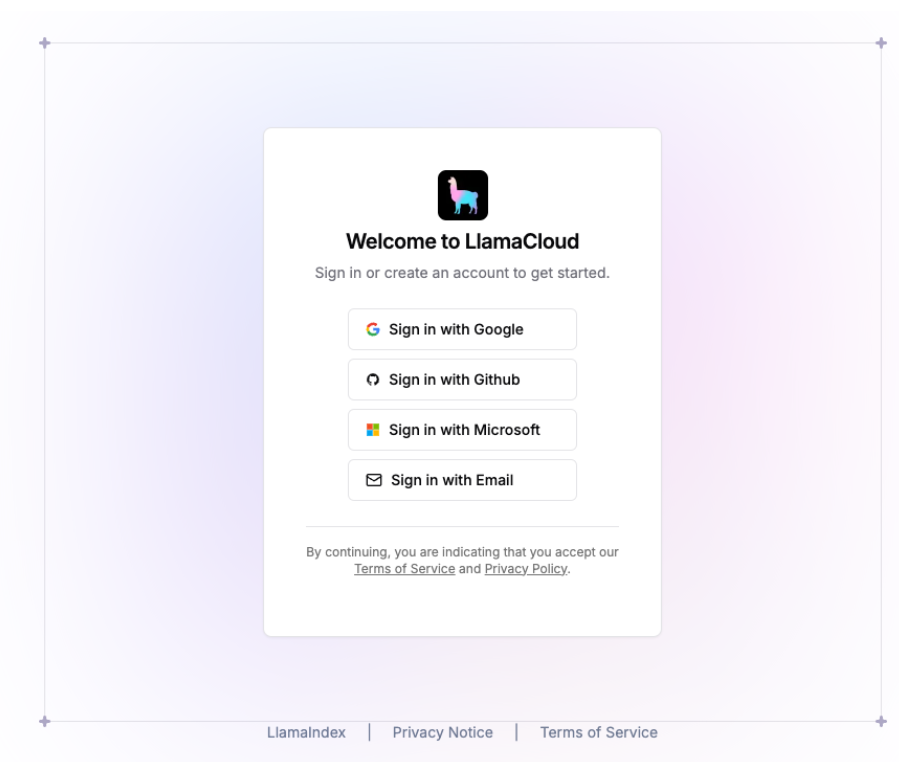
Once you have created an account and are logged in, click API Keys from the left navigation and then the Generate New Key button.
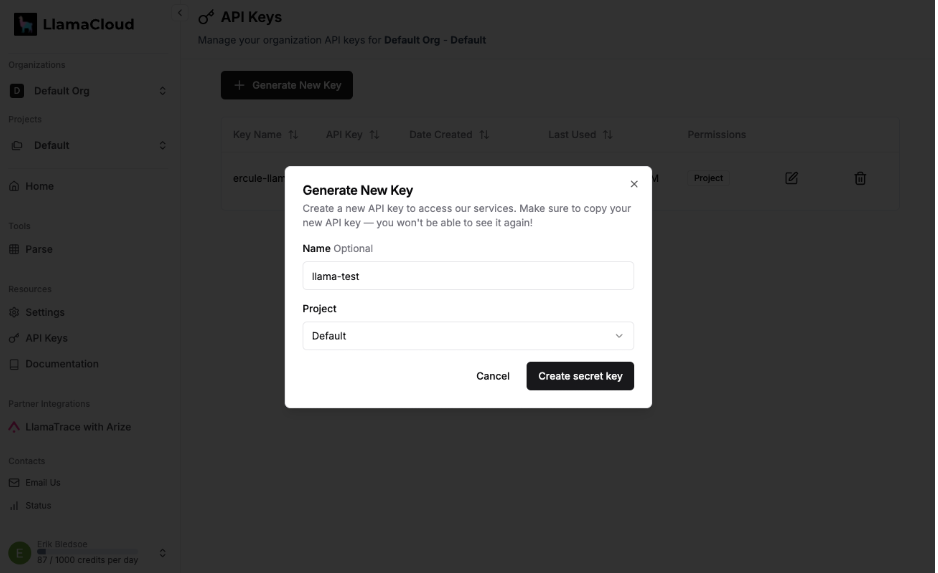
Caution: Once your key is displayed, copy it and save it to a secure location. You won’t be able to redisplay it once you dismiss the screen. If you lose your key, you should revoke it and create a new one.
Set LLAMA_CLOUD_API_KEY as an environment variable in your shell.
sh
export LLAMA_CLOUD_API_KEY="llx-..."Now we’re ready to begin parsing PDF files. Let’s write some code.
Parse your first PDF with LlamaParse and Python
We’ll begin by parsing a two-page report comparing investment returns from the Nasdaq-100 vs. the S&P 500. You can download the PDF file with your browser or by using wget.
sh
wget https://indexes.nasdaqomx.com/docs/NDX-vs-SPX_2%20pager.pdfNow we’ll create a simple Python script to parse the PDF file and save its content as markdown.
python
from pathlib import Path
from llama_cloud import LlamaCloud
from llama_index.core import Document

client = LlamaCloud()  # reads LLAMA_CLOUD_API_KEY
file = client.files.create(file=Path("./NDX-vs-SPX_2 pager.pdf"), purpose="parse")
result = client.parsing.parse(
    file_id=file.id,
    tier="cost_effective",  # supports markdown; Fast does not
    version="latest",
    expand=["markdown"],
    output_options={"markdown": {"tables": {"output_tables_as_markdown": True}}},
)
if result.markdown is None:
    raise RuntimeError("The parse job returned no markdown")

failed_pages = [page.page_number for page in result.markdown.pages if not page.success]
if failed_pages:
    raise RuntimeError(f"Parsing failed for pages: {failed_pages}")

documents = [Document(text=page.markdown or "") for page in result.markdown.pages]
Path("output.md").write_text("\n\n".join(doc.text for doc in documents), encoding="utf-8")
Save the script as parse.py and then run it.
sh
python parse.pyOnce the script finishes, open output.md. You’ll see that LlamaParse has successfully extracted the content from the PDF and correctly applied structure via headers. Notice that the table at the bottom of the first page was also recreated in markdown.
markdown
| |Nasdaq-100 TR|S&P 500 TR|
|---|---|---|
|Cumulative Return|315%|156%|
|Annualized Return|13%|9%|
|Annualized Volatility|22%|20%|
Extracting data from charts and graphs
To analyze the graphs as structured data, request chart parsing and the items result. Parse supports multiple tiers so you can balance speed, cost, and parsing quality for your document.
The first example uses the Cost Effective tier for markdown. For charts, use Agentic Plus with specialized chart parsing. Cost Optimizer can route simpler pages to the lower-cost tier while keeping complex pages on Agentic Plus.
python
import json
from pathlib import Path
from llama_cloud import LlamaCloud
from llama_index.core import Document

client = LlamaCloud()
file = client.files.create(file=Path("./NDX-vs-SPX_2 pager.pdf"), purpose="parse")
result = client.parsing.parse(
    file_id=file.id,
    tier="agentic_plus",
    version="latest",
    expand=["markdown", "items"],
    processing_options={
        "specialized_chart_parsing": "agentic_plus",
        "cost_optimizer": {"enable": True},
    },
    output_options={"markdown": {"tables": {"output_tables_as_markdown": True}}},
)
if result.markdown is None or result.items is None:
    raise RuntimeError("The parse job returned no markdown or structured items")

failed_pages = [page.page_number for page in result.markdown.pages if not page.success]
if failed_pages:
    raise RuntimeError(f"Parsing failed for pages: {failed_pages}")

documents = [Document(text=page.markdown or "") for page in result.markdown.pages]
Path("output.md").write_text("\n\n".join(doc.text for doc in documents), encoding="utf-8")
Path("chart-output.json").write_text(
    json.dumps(result.items.model_dump(mode="json"), indent=2), encoding="utf-8"
)
When the job completes, open output.md for the parsed text and chart-output.json for structured items, including charts the parser identifies. The table below illustrates chart data rendered as markdown; actual output can vary.
markdown
Industry (ICB) Breakdown

| Industry | Nasdaq-100 Industry (ICB) Weights | S&P 500 Industry (ICB) Weights |
|----------|-----------------------------------|--------------------------------|
| Technology | 55% | 22% |
| Consumer Services | 25% | 14% |
| Health Care | 8% | 13% |
| Consumer Goods | 6% | 8% |
| Industrials | 6% | 12% |
| Telecommunications | 1% | 2% |
| Utilities | 3% | 3% |
| Financials | - | 18% |
| Oil & Gas | - | 5% |
| Basic Materials | 2% | 2% |
Learn more about parsing tiers and how Cost Optimizer routes simpler pages to a lower-cost tier while retaining the selected tier for complex pages.
Storing your data in a vector database
Once you’ve extracted your data from the PDF, you can send it to a vector database such as Elasticsearch. For embeddings, use an API key from OpenAI. The vector store can use a local Elasticsearch endpoint or Elastic Cloud. For a local instance, set ELASTICSEARCH_URL to its URL (for example, http://localhost:9200). For Elastic Cloud, set ELASTIC_CLOUD_ID and ELASTIC_API_KEY instead. Set only one endpoint option. Set OPENAI_API_KEY and install the two optional integrations listed in the code. This example uses the documents created by the earlier parsing example. Use a disposable index for tests.
python
# First install the optional integrations:
# pip install llama-index-vector-stores-elasticsearch llama-index-embeddings-openai
import os
from llama_index.vector_stores.elasticsearch import ElasticsearchStore
from llama_index.core.node_parser import SimpleNodeParser
from llama_index.embeddings.openai import OpenAIEmbedding
from llama_index.core import VectorStoreIndex, StorageContext

es_store = ElasticsearchStore(
    index_name="llama-parse-docs",
    es_url=os.environ.get("ELASTICSEARCH_URL"),
    es_cloud_id=os.environ.get("ELASTIC_CLOUD_ID"),
    es_api_key=os.environ.get("ELASTIC_API_KEY"),
)
nodes = SimpleNodeParser().get_nodes_from_documents(documents)
storage_context = StorageContext.from_defaults(vector_store=es_store)
index = VectorStoreIndex(
    nodes=nodes,
    storage_context=storage_context,
    embed_model=OpenAIEmbedding(api_key=os.environ["OPENAI_API_KEY"]),
)
We won’t go through the full process here, but we’ve prepared detailed examples of sending extracted data to Elasticsearch as well as to Astra DB in our repo.
Fine-tuning your PDF
Almost any document that can be displayed on a computer screen can be saved as a PDF, which, as we discussed earlier, makes it difficult to parse them consistently. LlamaParse supports numerous ways to adjust the parsing instructions fed to the LLM for better results or advanced capabilities.
Translate your output
Have a document in Spanish but need to store its content in English? LlamaParse can do that.
Save a Spanish-language PDF of your choice locally as documento.pdf.
Parse lets you customize the agentic model's instructions with agentic_options.custom_prompt. In this example, the prompt asks for an English translation.
python
from pathlib import Path
from llama_cloud import LlamaCloud
from llama_index.core import Document

client = LlamaCloud()
file = client.files.create(
    file=Path("./documento.pdf"), purpose="parse"
)
result = client.parsing.parse(
    file_id=file.id,
    tier="agentic",
    version="latest",
    expand=["markdown"],
    agentic_options={
        "custom_prompt": "If the input is not in English, translate the output into English."
    },
)
if result.markdown is None:
    raise RuntimeError("The parse job returned no markdown")

failed_pages = [page.page_number for page in result.markdown.pages if not page.success]
if failed_pages:
    raise RuntimeError(f"Parsing failed for pages: {failed_pages}")

documents = [Document(text=page.markdown or "") for page in result.markdown.pages]
Path("output.md").write_text("\n\n".join(doc.text for doc in documents), encoding="utf-8")
Prompts are incredibly powerful and provide you with granular control of your output. Learn more about how to use prompts in the docs.
Limiting/targeting your parsing
To parse selected pages, upload a PDF with at least 34 pages as long-document.pdf for the example below. For the two-page Nasdaq PDF used earlier, change target_pages to "1" or "1-2" instead. You do not need to extract the selected pages into a separate PDF first.
python
# Reuse the client. This example needs a PDF with at least 34 pages.
file = client.files.create(file=Path("./long-document.pdf"), purpose="parse")
result = client.parsing.parse(
    file_id=file.id,
    tier="cost_effective",
    version="latest",
    expand=["markdown"],
    page_ranges={"target_pages": "1,11,13,23-34"},  # v2 pages are 1-based
)
The v2 API numbers pages starting at 1. The example selects the same pages as the former 0-based range by adding 1 to each page number.
More examples
There are dozens of additional ways you can fine tune your parsing to fit your specific needs. You can apply output schemas to create invoices and resumes. Although we have focused on parsing PDF files, LlamaParse supports extracting data from dozens of different file formats, including audio files.
To help you explore the full range of capabilities, we’ve compiled dozens of examples and made them available in our repo.
Conclusion
LlamaParse makes parsing PDFs and other unstructured data easier and less labor-intensive than ever. It exponentially increases the data available for your GenAI apps while simultaneously freeing your developers to innovate rather than wasting time writing bespoke apps to extract and parse data from hard-to-crack data sources.
Get started with LlamaParse today and parse up to 1000 pages per day for free.