

With the rise of vibe-coding, the world of software development has been seeing a substantial increase in the usage of coding agents, especially terminal or IDE-based ones (like Claude Code or Cursor).
Along with this growing adoption, one challenge stands out: access to the filesystem.
Notably:
- Handling permissions to write or edit files, without these actions resulting in the accidental deletion of codebases or other important files
- Providing the agent with a deep understanding of unstructured documents (PDFs, presentations, Google/Word Docs) so that they can properly handle automation and knowledge work
In this article, we will try to find a solution to both of these problems, and we’ll do it using LlamaParse, LlamaIndex Agent Workflows, Claude Agent SDK and AgentFS.
All the code from this blog post is available at: github.com/run-llama/agentfs-claude
File System Virtualization and Other Magic Tricks
The first challenge we listed is related to giving a coding agents permissions to access your filesystem, while still maintaining a high-level of control.
One way around this problem is to frequently use human-in-the-loop: while this is a high-success strategy (most people can recognize dangerous actions and block them before they happen), it breaks the autonomy that a coding agent should provide. Constantly looping in the human means that the agent cannot run in the background and always requires a level of attention.
The second way around this is, counterintuitively, to ban the agent from accessing your actual file system, and make it work in a virtualized copy. This option allows the agent to perform all sorts of of operations, even the most destructive ones, without damaging your files, since everything happens with copies, not with real documents.
To demonstrate this second option, we will use AgentFS, a high-performance, SQLite-based virtual filesystem that was designed by Turso, which can also work as key-value cache and tool calls registry.
Using the AgentFS TypeScript SDK, we can build several utilities to load, retrieve and modify the files to and from AgentFS database. Here is an example:
javascript
export async function readFile(
  filePath: string,
  agentfs: AgentFS,
): Promise<string | null> {
  let content: string | null = null;
  try {
    content = (await agentfs.fs.readFile(filePath, "utf-8")) as string;
  } catch (error) {
    console.error(error);
  }
  return content;
}
Once we have defined all the functions for the filesystem operations (read, write, edit, check existence and list files in a directory), we used them to create custom tools in a SDK MCP for Claude Code, the filesystem MCP. Here is a code snippet on how you can do it:
javascript
// define a Zod schema shape
const readSchemaShape = {
  filePath: z.string().describe("Path of the file to read"),
};

// turn the schema into a Zod object
const readSchema = z.object(readSchemaShape);

// create a helper function to connect with the AgentFS database
export async function getAgentFS({
  filePath = null,
}: {
  filePath?: string | null;
}): Promise<AgentFS> {
  if (!filePath) {
    filePath = "fs.db";
  }
  const agentfs = await AgentFS.open({ id: "claude-agentfs", path: filePath });
  return agentfs;
}

// define the read tool based on the read function above
async function readTool(
  input: z.infer<typeof readSchema>,
): Promise<CallToolResult> {
  const agentfs = await getAgentFS({});
  const content = await readFile(input.filePath, agentfs);
  if (typeof content == "string") {
    return { content: [{ type: "text", text: content }] };
  } else {
    return {
      content: [
        {
          type: "text",
          text: `Could not read ${input.filePath}. Please check that the file exists and submit the request again.`,
        },
      ],
      isError: true,
    };
  }
}

// convert to an Claude Agent SDK Tool
const mcpReadTool = tool(
  "read_file",
  "Read a file by passing its path.",
  readSchemaShape,
  readTool,
);

// use within MCP
export const fileSystemMCP = createSdkMcpServer({
  name: "filesystem-mcp",
  version: "1.0.0",
  tools: [mcpReadTool, ...],
});
Since all the tools are now loaded within an MCP, Claude does not have any need to use its built-in filesystem tools (Read , Write , Edit and Glob ), that we can disallow in the agent options. To make sure that the agent does not bypass this guardrail, because of hallucination or misalignment, we can also define a specific PreToolUse hook (some custom logic that runs before a tool executes) to deny every call to the filesystem tools listed above.
javascript
// define the function
async function denyFileSystemToolsHook(
  _input: PreToolUseHookInput,
  _toolUseId: string | undefined,
  _options: { signal: AbortSignal },
): Promise<HookJSONOutput> {
  return {
    async: true,
    hookSpecificOutput: {
      permissionDecision: "deny",
      permissionDecisionReason:
        "You cannot use standard file system tools, you should use the ones from the filesystem MCP server.",
      hookEventName: "PreToolUse",
    },
  };
}

// list it as a hook
const hooks: Partial<Record<HookEvent, HookCallbackMatcher[]>> = {
  PreToolUse: [
    {
      matcher: "Read|Write|Edit|Glob",
      hooks: [denyFileSystemToolsHook],
    } as HookCallbackMatcher,
  ],
};
With hooks, we can also add two that run after (PostToolUse ) our write and edit tools from the filesystem MCP, so that we can ask the user if they want to persist the changes within the real filesystem, and not only in the virtual one. You can find all the hooks, along with the other configuration options, in this file.
With all the tooling being set, it is now important to instruct the agent on how to use it, and we can do that through a custom system prompt:
javascript
export const systemPrompt = `
You are an expert programmer whose task is to assist the user implement their requsts within the current working directory.

In order to perform file system operations, you MUST NOT USE the built-in tools you have (Read, Write, Glob, Edit): instead, you MUST USE the 'filesystem' MCP server, wich provides the following tools:

- 'read_file': read a file, providing its path
- 'write_file': write a file, providing its path and content
- 'edit_file': edit a file, providing the old string and the new string to replace the old one with
- 'list_files': list all the available files
- 'file_exists': check whether or not a file exists, providing its path

Using these tools, you should be able to provide the user with the assistance that they need.
`;
Now Claude Code should not only be able to use the filesystem MCP tools, but it will also always choose them over the built-in ones: if that doesn’t happen, tho, we are still protected by the hook we put in place.
The only issue is that this filesystem, the way we configured it, works only with text-based files (such as .txt or .md ) and so, if the agent wanted to access PDF files or other non text-based formats, it would not be able to: this problem brings us to the next step, which allows us to transform unstructured files into machine-readable text.
Making Unstructured Documents Accessible
Understanding complex documents is crucial for many use cases where the final product we're trying to achieve is bound to a specific set of data: many coding agents, including Claude Code, offer basic intelligence over PDFs, but as files grow in complexity their performance is degraded.
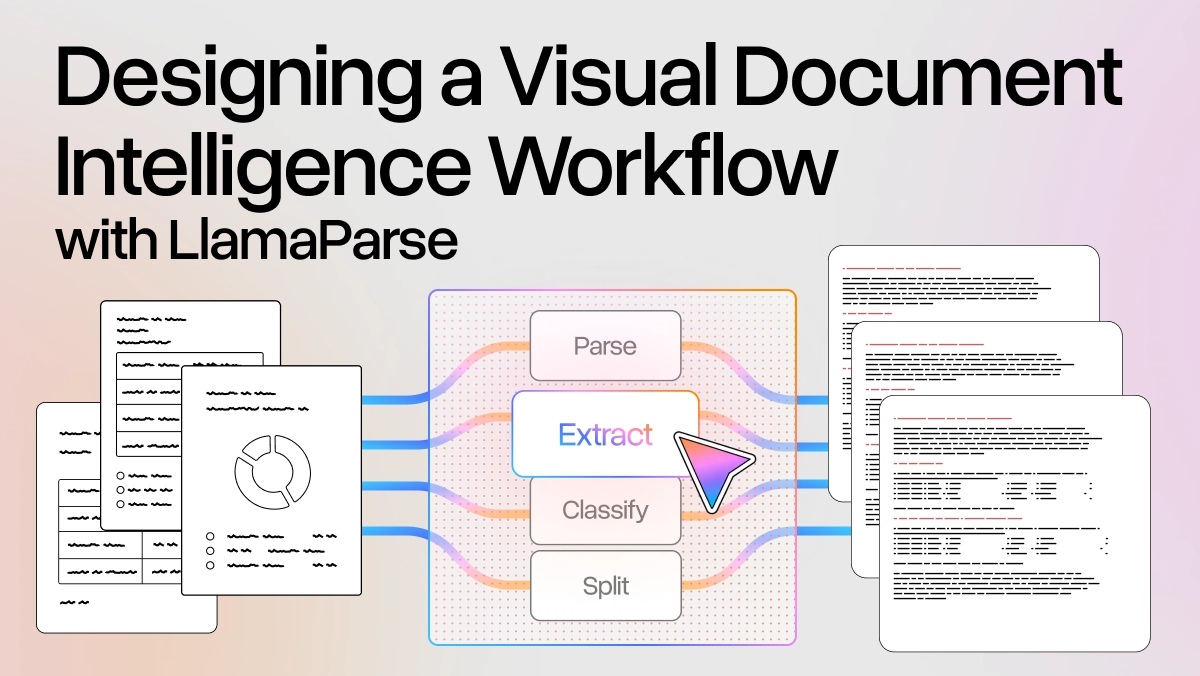
In our demo with AgentFS, we can exploit the fact that we are already using a virtual file system to load unstructured files in plain text. In order to do so, we can use LlamaParse, a state-of-the-art OCR and agentic parsing solution to extract high quality text content from PDFs, Word and Google Docs, Excel sheets and many more file formats.
When preparing the filesystem environment for the coding agent we load text-based files as they are, and we parse unstructured files with LlamaParse to load them with their text content and allow Claude Code to access high-quality extracted text and get a better understanding of what the requirements for our projects might be if they involve documents.
Here is the function we use to parse files, leveraging the llama-cloud-services typescript package:
javascript
const apiKey = process.env.LLAMA_CLOUD_API_KEY;
const reader = new LlamaParseReader({
  resultType: "text",
  apiKey: apiKey,
  fastMode: true,
  checkInterval: 4,
  verbose: true,
});

export async function parseFile(filePath: string): Promise<string> {
  let text = "";
  try {
    const documents = await reader.loadData(filePath);
    for (const document of documents) {
      text += document.text;
    }
    return text;
  } catch (error) {
    console.log(error);
    return text;
  }
}
Use a Workflow as Harness
Now that we understand how to set up the virtual file system with AgentFS and how to load unstructured files using LlamaParse, we just need to piece everything together with a harness that provides Claude Code a code-ready environment.
We do that using LlamaIndex Workflows, with the @llamaindex/workflows-core typescript package, which provides us with two main advantages:
- Stepwise execution: Claude Code runs in a self-contained step, which is triggered only when the two previous steps (loading files in the virtual file system and gathering the prompt) have successfully completed
- Humana in the loop: workflows offer an easy human-in-the-loop architecture pattern, which benefits from the possibility of maintaining a snapshottable and resumable state. This feature allows us to collect the prompt from the user during the execution of the workflow (along with other options, such as plan mode activation and resuming a previous session)
Let’s take a look at how we can implement the workflow:
javascript
async function main() {
  const { withState } = createStatefulMiddleware(() => ({}));
  const workflow = withState(createWorkflow());
  const startEvent = workflowEvent<{ workingDirectory: string | undefined }>();
  const filesRegisteredEvent = workflowEvent<void>();
  const requestPromptEvent = workflowEvent<void>();
  const promptEvent = workflowEvent<{
    prompt: string;
    resume: string | undefined;
    plan: boolean;
  }>();
  const stopEvent = workflowEvent<{ success: boolean; error: string | null }>();

  const notFromScratch = fs.existsSync("fs.db");

  const agentFs = await getAgentFS({});

  workflow.handle([startEvent], async (_context, event) => {
    if (notFromScratch) {
      return filesRegisteredEvent.with();
    }
    const wd = event.data.workingDirectory;
    let dirPath: string | undefined = wd;
    if (typeof wd === "undefined") {
      dirPath = "./";
    }
    const success = await recordFiles(agentFs, { dirPath: dirPath });
    if (!success) {
      return stopEvent.with({
        success: success,
        error:
          "Could not register the files within the AgentFS file system: check writing permissions in the current directory",
      });
    } else {
      return filesRegisteredEvent.with();
    }
  });

  // eslint-disable-next-line
  workflow.handle([filesRegisteredEvent], async (_context, _event) => {
    console.log(
      bold(
        "All the files have been uploaded to the AgentFS filesystem, what would you like to do now?",
      ),
    );
    return requestPromptEvent.with();
  });

  workflow.handle([promptEvent], async (_context, event) => {
    const prompt = event.data.prompt;
    const agent = new Agent(queryOptions, {
      resume: event.data.resume,
      plan: event.data.plan,
    });
    try {
      await agent.run(prompt);
      return stopEvent.with({ success: true, error: null });
    } catch (error) {
      return stopEvent.with({ success: false, error: JSON.stringify(error) });
    }
  });

  const { sendEvent, snapshot, stream } = workflow.createContext();
  sendEvent(startEvent.with({ workingDirectory: "./" }));
  await stream.until(requestPromptEvent).toArray();
  const snapshotData = await snapshot();
  const humanResponse = await consoleInput("Your prompt: ");
  console.log(
    bold("Would you like to resume a previous session? Leave blank if not"),
  );
  const resumeSession = await consoleInput("Your answer: ");
  let sessionId: string | undefined = undefined;
  if (resumeSession.trim() != "") {
    sessionId = resumeSession;
  }
  console.log(bold("Would you like to activate plan mode? [y/n]"));
  const activatePlan = await consoleInput("Your answer: ");
  let planMode = false;
  if (["yes", "y", "yse"].includes(activatePlan.trim().toLowerCase())) {
    planMode = true;
  }
  const resumedContext = workflow.resume(snapshotData);
  resumedContext.sendEvent(
    promptEvent.with({
      prompt: humanResponse,
      resume: sessionId,
      plan: planMode,
    }),
  );
  await resumedContext.stream.until(stopEvent).toArray();
}
The full definition can be found here.
Now that the workflow is ready, all is left to do is start the first coding agent session! If you’ve been following from the repository, all you need to do is run:
pnpm run start
For future sessions, if you wish to clean the agent file system database, you can also run pnpm run clean-start .
Wrapping Up
In this blog post, we have explored:
- The challenges of the current approach of coding agent to filesystem management
- The advantages of using a virtualized file system (and how to set one up with AgentFS)
- The issue of document understanding for coding agents and how to use LlamaParse as a solution for that
- How to package everything within a LlamaIndex Agent Workflow to have the perfect harnessed environment